The WhiteDoc service allows you to conveniently and quickly sign documents using the Privat24 SmartID cloud-based signature.
To use SmartID as a method for signing documents, you must follow the instructions below:
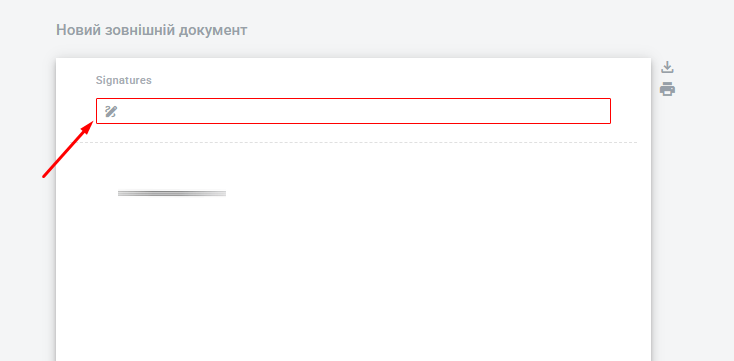
Open the envelope with the required signatures and click the signature field in the document
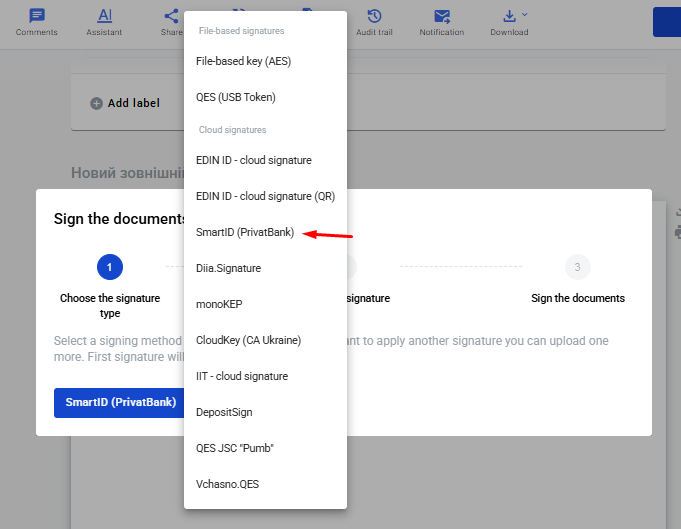
Select SmartID as a method to sign a document in the modal window
In the next modal window QR code will be displayed, and you have to scan the QR code using the application Privat24 or Privat24 business
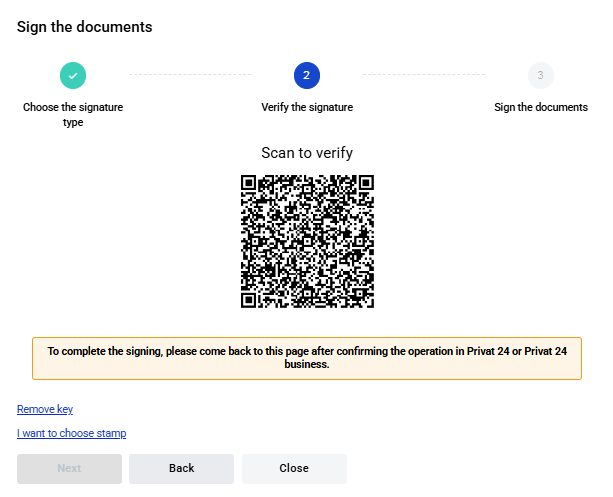
You will need to scan two QR codes to sign:
1. For authorisation
2. To apply your signature
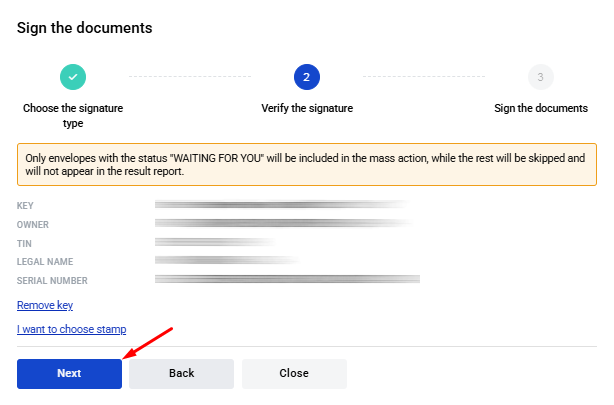
As soon as you scan the QR code, you have to follow the instructions in the Privat24 application. When things are done in a modal window QR code is replaced with signature data. Click the 'Next' button or select another signature or add a stamp as needed
You will see the list of documents you’re going to sign. Here, you need to click ‘Sign’ button
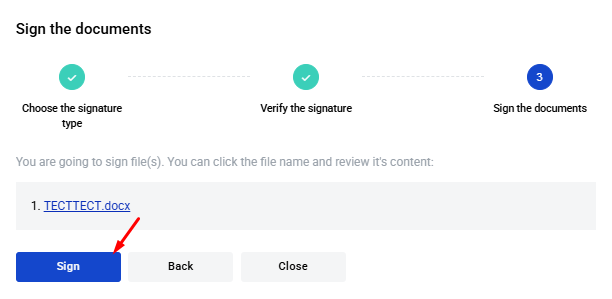
In the next step, you will see another QR code; scan it and follow the same procedure as for the previous code. You can also toggle the ‘Send after signing’ option on or off.
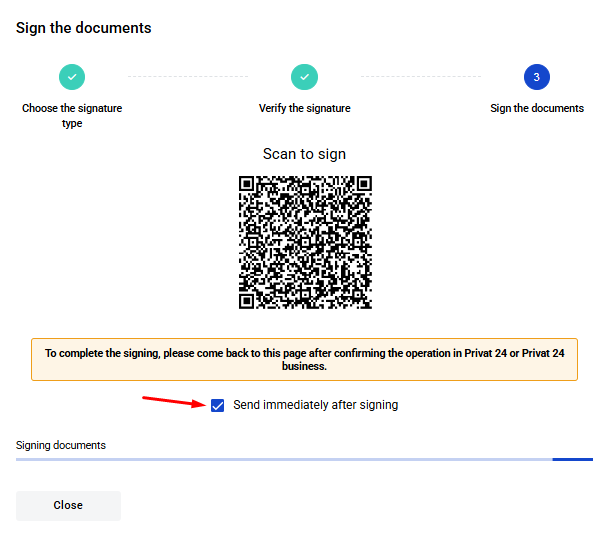
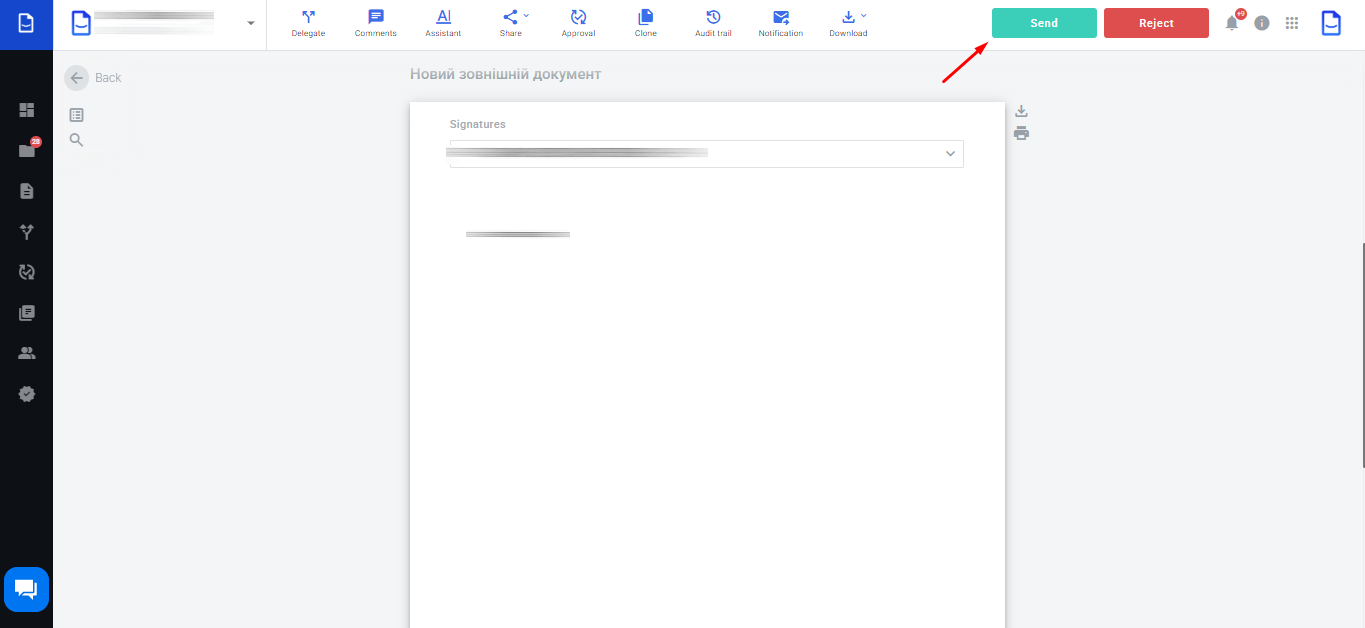
If the toggle is set, the envelope will be sent straight away. If it is turned off, you can send it later by clicking the ‘Send’ button
Now you have a clearer understanding 😉
WhiteDoc
