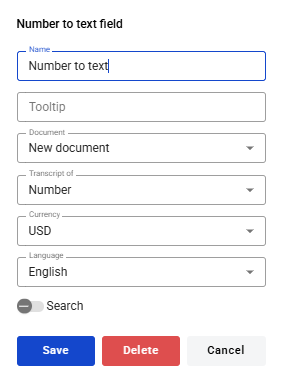
This field allows you to automatically display the numerical values of the ‘Number’ and ‘Currency’ fields as text
This field can be added to structured and PDF documents.
How to add the ‘Number to Text’ field to a document
To add a field to a document, use one of the methods for adding fields via the field icon on the ‘Fields’ tab in the template editor menu
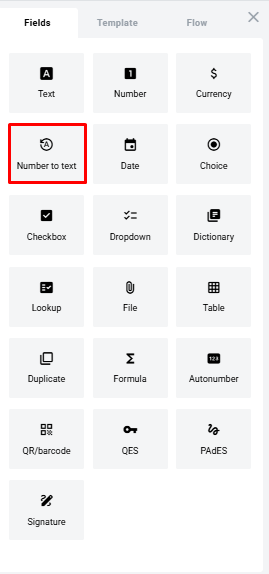
Please note:
The ‘Number to text’ field can only be added if the ‘Number’ and ‘Currency’ fields are present
A form for creating the field will appear, where you need to specify the field’s attributes
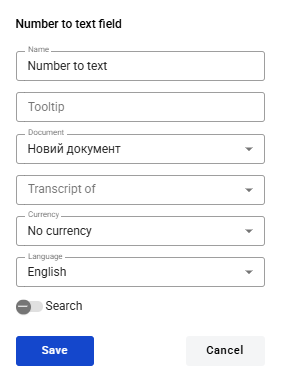
- Name – this is the name of the field
- Tooltip – this is the text that will be displayed when you hover the mouse over this field
- Document – this is a structured template document containing the ‘Number’ and ‘Currency’ fields. A template may contain several such documents
- Transcript of – you must select a link to the ‘Number’ or ‘Currency’ field in this template
- Currency – this setting determines whether the selected currency will be added at the end of the amount
- Language – this setting determines the language in which the text is displayed
- Search – this attribute determines whether this field should be searchable on the mailbox page
Once all attributes have been set, you can click the ‘Save’ button and the field will be added. You can click on the field to view its properties and update them. You can also delete the field from the same menu.